IT Help Desk & Remote Support Lab
 Saqib Majeed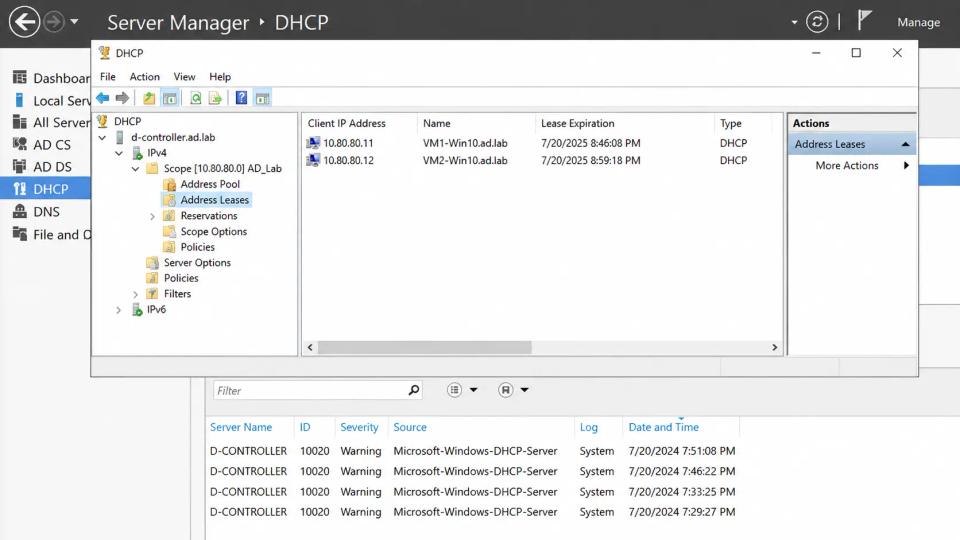
Built a simulated Windows 11 office environment with Active Directory, GLPI, Microsoft 365, and remote support tooling to practice end-user troubleshooting, ticket management, account administration, and PowerShell automation across 15 endpoints.
Overview
Built a simulated corporate help desk environment to practice supporting Windows users through a realistic IT service workflow. The lab included 15 Windows 11 endpoints joined to an Active Directory domain, GLPI for ticket management, Microsoft 365 applications, AnyDesk and RustDesk for remote support, and PowerShell for common administrative tasks.
Created and resolved more than 30 simulated support tickets covering account lockouts, application errors, printer problems, network connectivity, software installation, and Windows issues. The lab emphasized troubleshooting methodology, user communication, documentation, escalation, and efficient first-contact resolution.
Objectives
- Build a realistic Windows office environment for help desk practice.
- Manage users, computers, passwords, and permissions through Active Directory.
- Receive, prioritize, troubleshoot, and document incidents in GLPI.
- Provide remote technical support with AnyDesk and RustDesk.
- Troubleshoot common Windows, Microsoft 365, printer, and network issues.
- Automate repetitive user administration tasks with PowerShell.
- Develop consistent troubleshooting and escalation procedures.
- Improve first-contact resolution while maintaining clear ticket documentation.
Environment
Windows Infrastructure
- 15 Windows 11 workstations
- Windows Server with Active Directory Domain Services
- Active Directory users, groups, and organizational units
- DNS and DHCP services
- Group Policy
- PowerShell administration
Help Desk and Support Tools
- GLPI for incident and request management
- AnyDesk for remote support
- RustDesk for remote support
- Microsoft 365 applications
- Windows administrative and diagnostic tools
- PowerShell for automation and troubleshooting
The environment represented a small corporate network where users operated domain-joined Windows workstations and submitted technical issues through a centralized help desk.
Active Directory Environment
Domain Configuration
Configured Active Directory Domain Services to provide centralized identity and computer management for the lab. Windows 11 endpoints were joined to the domain and organized alongside user and group objects to simulate a managed business environment.
Created test accounts representing different users and departments, allowing support scenarios to involve realistic identity, authentication, and access problems.
User Administration
Performed common service desk tasks including:
- Creating and disabling user accounts
- Resetting passwords
- Unlocking locked accounts
- Managing security group membership
- Reviewing account status
- Updating user attributes
- Troubleshooting domain authentication
- Verifying workstation domain membership
These scenarios provided hands-on experience with common identity-related requests that frequently reach first-line and second-line support teams.
Group Policy
Used Group Policy to apply selected Windows settings across domain-joined systems. This provided experience distinguishing between issues caused by local workstation configuration and settings centrally enforced through the domain.
GLPI Ticket Management
Service Desk Workflow
Configured GLPI as the central ticketing platform for incidents and service requests. More than 30 simulated tickets were created and resolved across the lab.
Tickets represented common end-user issues such as:
- Account lockouts and password problems
- Windows login failures
- Microsoft 365 application issues
- Software installation requests
- Printer connectivity and printing failures
- DNS and network connectivity problems
- Application errors
- Windows configuration issues
- Peripheral and device problems
Ticket Lifecycle
Followed a structured workflow for each request:
- Review the user’s issue and reported symptoms.
- Categorize the ticket and determine priority.
- Gather additional information where necessary.
- Reproduce or validate the problem.
- Troubleshoot the likely causes.
- Apply and test the resolution.
- Document troubleshooting steps and results.
- Escalate unresolved issues when appropriate.
- Confirm service restoration before closing the ticket.
This created a repeatable process instead of treating troubleshooting as an isolated technical exercise.
Documentation
Recorded symptoms, troubleshooting steps, root cause where identified, actions performed, and final resolution within each GLPI ticket.
Documentation was written so another technician could understand what had already been attempted and continue the investigation without repeating unnecessary work.
Remote Technical Support
AnyDesk and RustDesk
Used AnyDesk and RustDesk to simulate supporting users who could not be assisted directly at their workstation. Remote sessions were used to inspect system configuration, reproduce reported problems, apply fixes, and verify functionality with the user.
Practiced remote support tasks such as:
- Reviewing Windows settings
- Checking application configuration
- Installing and updating software
- Troubleshooting Microsoft 365 applications
- Reviewing network configuration
- Managing printers and peripherals
- Running diagnostic commands
- Restarting applications and services
- Verifying fixes before ending the session
Using both platforms provided experience with remote support workflows independent of a single vendor.
Remote Troubleshooting Process
Before making changes, gathered information about the problem and confirmed the symptoms with the simulated user. During the remote session, worked from lower-impact troubleshooting steps toward configuration changes or administrative actions.
After resolving an issue, validated the affected application or service and documented the solution in GLPI.
Windows Troubleshooting
Operating System Issues
Created support scenarios involving common Windows 11 problems and used native administrative tools to investigate them.
Troubleshooting included:
- Reviewing Task Manager for failed or resource-intensive processes
- Checking Windows services
- Reviewing Event Viewer logs
- Validating device status in Device Manager
- Checking installed applications and updates
- Testing user profiles and permissions
- Restarting failed applications and services
- Using command-line tools for system diagnostics
The goal was to identify the underlying cause rather than immediately applying broad fixes such as restarting or reinstalling software.
Microsoft 365 Support
Simulated common Microsoft 365 support issues involving application startup, authentication, configuration, and user access.
Troubleshooting included verifying credentials, application state, network connectivity, user configuration, updates, and local application behavior before determining whether the issue originated from the workstation, user account, or application.
Network Troubleshooting
Connectivity Issues
Created scenarios where endpoints experienced partial or complete network connectivity failures. Used a layered troubleshooting process to determine whether the problem originated from the workstation, addressing configuration, DNS, gateway, or another network component.
Common diagnostic commands included:
ipconfigpingtracertnslookupnetstat
DNS and TCP/IP Troubleshooting
Validated IP address assignments, subnet configuration, default gateways, and DNS server settings before testing access to local and remote resources.
Used hostname and IP-based tests to distinguish DNS failures from broader connectivity problems. This helped avoid unnecessary changes when the underlying issue was limited to name resolution.
Printer and Peripheral Support
Printer Troubleshooting
Simulated common office printer issues including unavailable printers, incorrect default printers, failed print jobs, connectivity problems, and driver-related errors.
Troubleshooting involved:
- Confirming printer connectivity
- Checking the configured printer and port
- Reviewing queued print jobs
- Restarting the Print Spooler when appropriate
- Removing and re-adding printers
- Verifying or reinstalling drivers
- Testing printing after remediation
These scenarios reflected common help desk requests where the issue could originate from the workstation, Windows printing subsystem, network, or peripheral itself.
Software Installation and Application Support
Handled simulated requests for approved software installation and application troubleshooting.
Before installation, verified the requested software and endpoint requirements. Installed applications using administrative credentials where required and confirmed successful operation afterward.
For application failures, reviewed error messages, running processes, permissions, configuration, updates, and relevant logs before deciding whether repair or reinstallation was necessary.
PowerShell Automation
User Administration
Used PowerShell to reduce repetitive Active Directory administration and speed up common support tasks.
Automated or scripted operations included:
- Looking up user accounts
- Checking account status
- Unlocking accounts
- Resetting passwords
- Reviewing group membership
- Retrieving computer information
- Performing repetitive administrative checks
Diagnostic Automation
Created reusable commands and scripts to collect common troubleshooting information from Windows systems. This reduced the number of manual steps required during repeated support scenarios and provided consistent diagnostic output.
PowerShell complemented graphical administration tools rather than replacing them, providing a faster option for repetitive or multi-step tasks.
Troubleshooting Methodology
Used a consistent troubleshooting process throughout the lab:
1. Identify the Problem
Collected the reported symptoms, affected user or device, recent changes, error messages, and scope of the issue.
2. Establish a Likely Cause
Determined whether the issue was most likely related to identity, software, hardware, networking, permissions, or configuration.
3. Test the Theory
Used targeted diagnostic tools and low-impact tests to confirm or eliminate potential causes.
4. Apply the Resolution
Implemented the appropriate fix while avoiding unnecessary changes to unrelated systems or settings.
5. Verify Functionality
Confirmed that the original issue was resolved and checked that the change had not introduced another problem.
6. Document or Escalate
Recorded the resolution in GLPI or documented the troubleshooting already performed before escalating the ticket.
Security and Administrative Controls
Applied basic security practices throughout help desk operations:
- Used dedicated administrative credentials for privileged actions.
- Avoided granting unnecessary local administrator access to users.
- Managed access through Active Directory groups where appropriate.
- Verified account status before performing password or access changes.
- Limited software installation to approved applications.
- Documented administrative changes through GLPI.
- Used remote support tools only for authorized support scenarios.
These controls reinforced the principle that resolving a support request should not introduce unnecessary security risk.
Challenges and Lessons Learned
Separating Symptoms from Root Causes
Many simulated incidents produced similar user-facing symptoms despite having different causes. A user unable to reach an application, for example, could be experiencing DNS failure, authentication problems, network connectivity issues, or an application-specific error.
Following a structured troubleshooting process reduced unnecessary changes and helped identify the actual source of the problem.
Supporting Users Remotely
Remote support required gathering useful information before making changes and explaining troubleshooting steps clearly while working on another user’s system. This emphasized communication and verification alongside technical troubleshooting.
Balancing Resolution and Escalation
Not every ticket should be investigated indefinitely by the first technician who receives it. The lab included documenting attempted fixes and determining when escalation was more appropriate than continuing increasingly invasive troubleshooting.
Automating Repetitive Tasks
Repeated account and workstation administration demonstrated where PowerShell could reduce manual work. Automating predictable tasks improved consistency and allowed more time to be spent investigating issues that required individual analysis.
Results
- Built a simulated corporate Windows environment with 15 domain-joined Windows 11 endpoints.
- Configured Active Directory for centralized user, group, computer, and authentication management.
- Resolved more than 30 GLPI incidents and service requests involving Windows, Microsoft 365, accounts, applications, printers, networking, and software installation.
- Delivered remote technical support using AnyDesk and RustDesk.
- Used Windows diagnostic tools and TCP/IP utilities to identify endpoint and connectivity problems.
- Automated common Active Directory and troubleshooting tasks with PowerShell.
- Documented troubleshooting, resolutions, and escalation details through a structured ticket lifecycle.
- Achieved a 90% first-contact resolution rate across simulated help desk scenarios.
- Developed hands-on experience with Windows support, Active Directory, remote troubleshooting, ticket management, Microsoft 365, networking, PowerShell, and end-user technical support.