Azure Hybrid School Infrastructure with Entra ID, Intune & PowerShell
 Saqib Majeed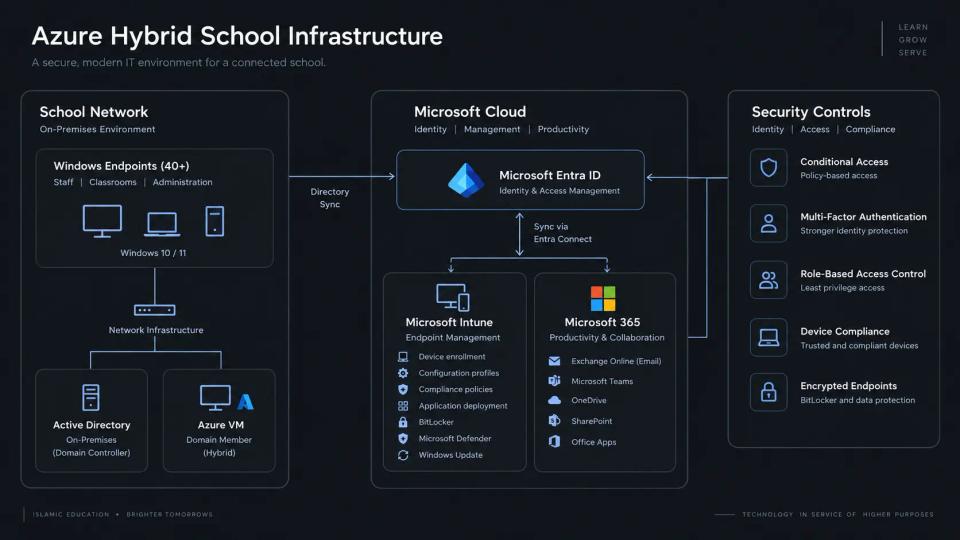
Built a hybrid Microsoft infrastructure for an elementary school, centralizing identity, access, and management for 100+ users and 40+ Windows endpoints using Entra ID, Intune, Azure, and PowerShell. Automated secure device provisioning and administrative workflows, reducing deployment time by 40% and recurring IT effort by 35%.
Designed and implemented a hybrid Microsoft infrastructure for a small Islamic elementary school supporting more than 100 staff, students, and shared accounts across 40+ Windows 10/11 endpoints. The project replaced inconsistent manual device setup and decentralized account administration with centrally managed identity, endpoint security, application deployment, and automated operational workflows.
The environment was designed for a school with a limited IT team, shared classroom devices, staff laptops, administrative workstations, and the need to protect student and school data without creating unnecessary friction for teachers.
Objectives
- Centralize user identity, access, and device administration.
- Standardize the setup of classroom, staff, and administrative Windows devices.
- Improve protection of Microsoft 365 accounts and school data.
- Reduce time spent on repetitive onboarding, provisioning, and troubleshooting tasks.
- Build a scalable foundation for future staff, student, and endpoint growth.
Environment and Technologies
- Microsoft Entra ID and Microsoft 365
- On-premises Active Directory with Entra Connect synchronization
- Microsoft Intune and Windows Autopilot
- Azure Virtual Machines for directory, administrative, and utility workloads
- Windows 10/11 Pro endpoints
- Microsoft Defender Antivirus and Microsoft Defender Firewall
- BitLocker Drive Encryption
- PowerShell and Microsoft Graph PowerShell modules
- Role-Based Access Control, Conditional Access, MFA, security groups, and device groups
Hybrid Identity and Access Management
Built a hybrid identity model integrating on-premises Active Directory with Microsoft Entra ID. Used Entra Connect to synchronize approved user accounts, security groups, and password changes, allowing school staff to use a single identity for Windows sign-in, Microsoft 365, email, Teams, OneDrive, and other cloud services.
Organized accounts into groups based on role and access requirements, including school administration, teachers, support staff, IT administrators, classroom devices, and shared accounts. Group-based access reduced manual permission changes and made onboarding or offboarding more consistent.
Implemented least-privilege access through RBAC. Administrative tasks were separated between Microsoft 365 administration, Intune endpoint administration, user management, and Azure resource administration. This reduced the number of accounts with broad administrative permissions and made privileged activity easier to review.
Configured Conditional Access policies to strengthen account security while maintaining practical access for staff:
- Required MFA for IT administrators and staff accessing cloud services outside trusted school devices.
- Blocked legacy authentication protocols that bypass MFA.
- Required compliant or managed devices for access to sensitive Microsoft 365 resources.
- Applied stricter sign-in requirements to privileged accounts.
- Created break-glass administrative accounts with secure, documented recovery procedures.
Endpoint Management with Intune
Enrolled and managed more than 40 Windows endpoints through Microsoft Intune. Devices included classroom desktops, staff laptops, front-office systems, and shared workstations used for teaching, administration, and student support.
Created separate Intune device groups and configuration profiles for classroom, staff, and administrative systems. This allowed policies and software to be targeted appropriately rather than applying the same settings to every device.
Standardized security and configuration settings through Intune policies, including:
- BitLocker encryption with recovery keys escrowed to Entra ID.
- Microsoft Defender Antivirus, real-time protection, cloud-delivered protection, and scheduled scans.
- Microsoft Defender Firewall profiles for domain, private, and public networks.
- Windows Update rings for controlled deployment of feature and security updates.
- Password, screen-lock, and inactivity timeout requirements.
- Restrictions on local administrator access for standard users.
- Browser configuration and approved extension controls.
- OneDrive Known Folder Move to back up Desktop, Documents, and Pictures folders for staff.
- Wi-Fi and Microsoft 365 configuration profiles to reduce manual setup during deployment.
Configured compliance policies to identify devices that were missing encryption, antivirus protection, current operating-system updates, or required security settings. Non-compliant devices were surfaced in Intune reports and could be restricted from accessing protected cloud resources through Conditional Access.
Device Provisioning and Application Deployment
Developed a repeatable provisioning process using Windows Autopilot, Intune, and PowerShell. New or reset devices could be registered, assigned to the appropriate deployment profile, enrolled in Intune, and configured with required applications and security settings with minimal manual intervention.
Created application packages and deployment assignments for essential school software, including:
- Microsoft 365 Apps
- Google Chrome and Microsoft Edge configuration
- Adobe Acrobat Reader
- Classroom and administrative utilities
- Remote-support tools
- Approved printing and PDF software
Applications were assigned according to job function and device type. For example, administrative applications were limited to office systems, while classroom devices received only the tools required for teaching and shared use. This reduced unnecessary software installations and simplified troubleshooting.
The standardized process reduced average endpoint deployment time by approximately 40%, from about 50 minutes of hands-on configuration per device to roughly 30 minutes, while producing more consistent security and software baselines.
PowerShell Automation
Developed PowerShell scripts to reduce repetitive administrative work and improve consistency across account and endpoint tasks. Scripts were used for onboarding, bulk account updates, license assignment, group membership, device inventory reporting, and security checks.
Automation included:
- Creating and updating user accounts from structured staff information.
- Assigning Microsoft 365 licenses and role-appropriate group memberships.
- Generating reports for inactive accounts, missing MFA registration, and privileged users.
- Identifying devices that had not checked in with Intune or failed compliance policies.
- Exporting endpoint inventory details, including device name, operating system, ownership, encryption status, and last check-in date.
- Removing unauthorized local administrator memberships from managed devices.
- Supporting faster offboarding by disabling accounts, removing group access, and reclaiming licenses.
These workflows reduced routine account and device administration effort by approximately 35%, allowing more time for end-user support, infrastructure maintenance, and security remediation.
Security Improvements
The project introduced layered controls for identity, endpoints, and data protection. MFA and Conditional Access reduced the risk of credential-based compromise, while RBAC limited the impact of administrative account misuse. Endpoint policies improved consistency across devices that previously relied on manual configuration.
BitLocker encryption protected data on lost or stolen staff devices. Microsoft Defender and firewall settings established a baseline against malware and unauthorized network activity. Update rings improved visibility into patch status and reduced the number of devices running unsupported or unpatched Windows versions.
Centralized reporting in Intune and Entra ID also improved visibility. Rather than checking individual endpoints manually, IT could review device compliance, encryption state, failed deployments, risky sign-ins, and stale accounts from centralized administrative portals.
Results
- Supported 100+ users and 40+ Windows endpoints through centralized hybrid identity and endpoint management.
- Reduced endpoint provisioning time by 40% through Autopilot, Intune configuration profiles, application deployment, and PowerShell automation.
- Reduced recurring account and device administration effort by 35%.
- Improved account protection through MFA, Conditional Access, RBAC, group-based access, and legacy-authentication restrictions.
- Standardized BitLocker, Microsoft Defender, firewall, patching, and device-compliance controls across managed Windows endpoints.
- Improved visibility into inactive accounts, privileged access, device compliance, encryption status, and endpoint inventory.
- Created a scalable, documented foundation for onboarding staff, replacing classroom devices, and expanding school technology services.